


by Jason Zandri
www.2000trainers.com
Welcome to
this week’s installment of Learn Windows XP Professional in
15 minutes a week, the fourth in this series. This article covers how to setup a RIS
server in order to deploy Windows XP Professional via RIS as
well upgrading from older operating systems to Windows XP
Professional.
Jason Zandri’s latest article in the Learning Windows XP Professional in 15 Minutes a Week series covers how to setup a Remote Installation Services (RIS) server in order to deploy Windows XP Professional via RIS as well upgrading from older operating systems to Windows XP Professional.
Upgrading to Windows XP
Professional
Before we
get started with a direct upgrade to Windows XP Professional
we need to know which operating systems support a direct
upgrade.
Windows XP Supported Upgrade Paths
The following direct
upgrade paths are supported by Microsoft and are
considered viable for both the Windows XP Professional and
Windows XP Home operating systems.
Microsoft Windows 98
Microsoft Windows 98 Second Edition
Microsoft Windows Millennium Edition
Windows XP
Home Edition Retail (Full) Version
Windows XP Home Edition Upgrade Version
Windows XP Professional Retail (Full) Version
Windows XP Professional Upgrade Version
Microsoft Windows NT 4.0 Workstation
Windows XP
Professional Retail (Full) Version
Windows XP Professional Upgrade Version
Microsoft Windows 2000 Professional
Windows XP
Professional Retail (Full) Version
Windows XP Professional Upgrade Version
Microsoft Windows XP Home Edition
Windows XP
Professional Retail (Full) Version
Windows XP Professional Upgrade Version
All Versions of Windows NT 4.0 require
Service Pack 5 to be installed prior to upgrading to Windows
XP.
Currently, there are no supported
direct upgrade paths for the following Microsoft operating
systems:
Microsoft Windows 3. x
Microsoft Windows NT 3.51
Workstation
Microsoft Windows NT 3.51 Server
Microsoft Windows NT 3.51 Server
with Citrix
Microsoft Windows 95
Microsoft BackOffice Small Business
Server
Having this
information available or knowing where to look it up is
important before you get started.
[NOTES
FROM THE FIELD] – I often get the question, “how do
you know all of this stuff”, when I am working with desktop
or system admins. The truth is, I often do not know the
information off the top of my head. Sometimes I do, and it
is often due to the fact that many people throughout the
course of the year come to ask me different questions, and
because many of them are repetitive, I often have immediate
recall of them. Many times, (more often than not) I don’t
remember the answer, but I have a vague idea of where I
looked it up when I was asked it before and I head right
back to the source to get the information again. Half of the
“battle” is knowing where to look up the information when you
need it. If you can do that, you’re ahead of the game and
ahead of most other people you might work with.
Once you
are certain that the operating system you’re currently using
can be directly upgraded to Windows XP Professional, you
then need to be sure that the installed system hardware
meets the minimum Windows XP Professional hardware
requirements by verifying all of the hardware is on the
Hardware Compatibility List (HCL) at the Microsoft
website.
Windows XP Professional supports only
the devices listed in the HCL. If your hardware isn’t
listed, contact the hardware manufacturer and request a
Windows XP Professional driver.
Support means that while the operating
system may load and run on unsupported hardware and
software, any issues that come up with the system will not
be covered (i.e. supported) by Microsoft Technical Support
if you should need to engage them.
You can
test the computer for compatibility by using the Windows XP
Professional Compatibility tool. During a system upgrade you
will see the option for this on the introductory screen.
(You can also run the tool from the command line by typing
:i386winnt32 /checkupgradeonly. You can
perform just the check and then exit the tool without
installing the operating system, if you wish.)
If you have
AUTORUN enabled on your system the Welcome to Microsoft
Windows XP setup screen will appear, as shown below:
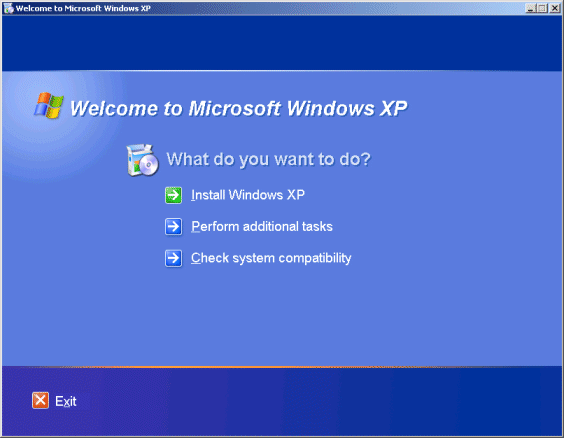
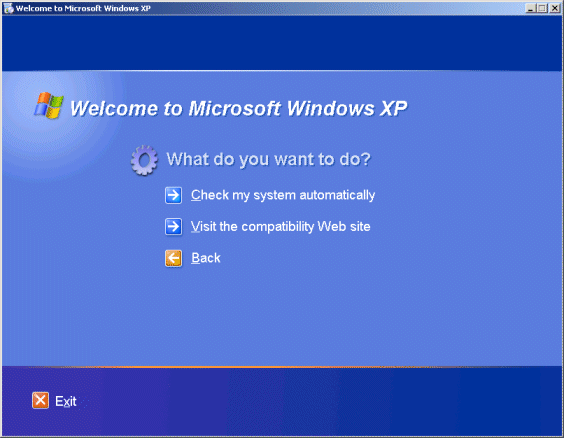
The Windows XP Professional
Compatibility tool can be run by selecting Check system
compatibility and then “Check my system automatically”.
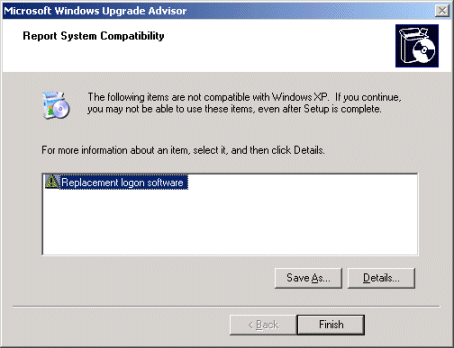
If any issues are found they will be
reported in the Microsoft Windows Upgrade Advisor
Compatibility window.
During an OS upgrade on a system with
pre-installed software, you can use upgrade packs to make
the existing software compatible with Windows XP
Professional. Upgrade packs are usually available from the
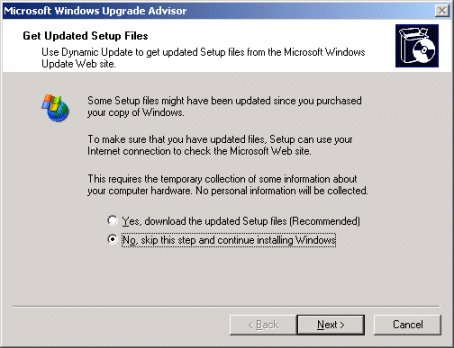
appropriate software manufacturers. You can also get updated
setup files from Microsoft during the upgrade installation
if you are connected to the internet.
As time
passes from the point of original software distribution,
(many vendors often call the first official release of a
software platform as a GOLD distribution) many files may be
updated before a second edition of the software (such as
Windows 98 Second Edition) or a service release (Office XP
Professional SR1, for example) is distributed. Dynamic update allows you
to do this as you start your installation. You can also
elect to not perform it during the installation if you wish to
run it a later time.