


Publishing
Resources in Active Directory
One of the benefits of Active Directory is that it is useful for
more than just user authentication. As a store of information,
Active Directory can be queried to find details about objects that
we know about (such as a users telephone number), as well as to
find objects that we perhaps didnt know existed at all. Many
objects are published in Active Directory by default, such as
users, groups, and computers. However, it is also possible to
publish information about other useful objects, most notably
printers and shared folders. Once a resource has been published,
the resource can be moved, and users will still be able to find
it, as long as you update the shortcut to the object in Active
Directory.
Let’s start with a look at printers. Printers are published
automatically in Active Directory as long as they were created on
a print server running Windows 2000. However, it is possible that
you have a printer that is using a downlevel system as a print
server, say Windows 98 or Windows NT. These can also be published
to AD, either by using Active Directory Users and Computers, or by
using the file pubprn.vbs found in the Windows 2000 system32
directory. Printers are published using their UNC path, in the
format print_serverprinter. The screen below shows a printer
being published in AD Users and Computers.
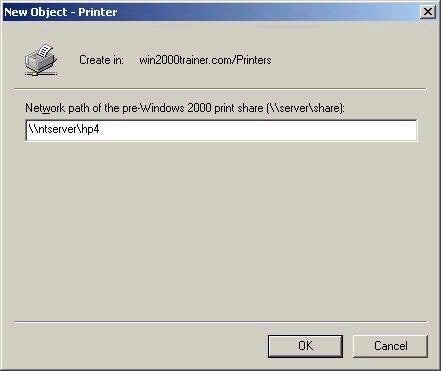
The pubprn.vbs
script needs to be run from the command prompt, using the cscript
scripting host. The command needs to specify the container into
which the printer(s) should be published, in LDAP format. The
example below first shows a single printer being published into
the printers OU, and then the command to have all printers from a
print server published to the printers OU.
Cscript %systemroot%system32pubprn.vbs ntserverhp4 “LDAP://OU=Printers,
DC=win2000trainer, DC=com”
Cscript %systemroot%system32pubprn.vbd ntserver “LDAP://OU=Printers,
DC=win2000trainer, DC=com”
Once the printer has been published, it is then possible for users
to search for it in Active Directory, using the Search command
from the Start menu. Note that the only printers that will be
returned by a search are those to which the user has access.
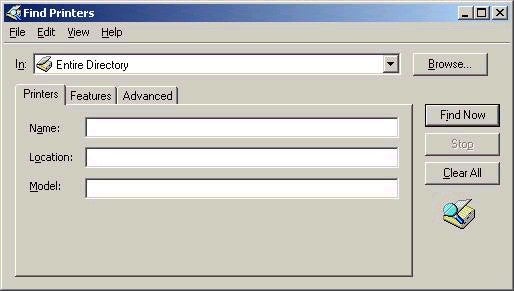
Among the most
useful features in the ability to search for a printer is the
ability to search by location, according to the location listed on
the properties of the printer itself. It is also worth noting that
there is a very powerful option associated with locations called
printer location tracking. In this setup the location field is
automatically populated with the location name of the subnet where
the user is located. Essentially subnets must be given location
names (in AD Sites and Services, discussed below), printers must
be given location names that correspond to their subnet location,
and location tracking must be enabled in group policy. If these
have been done, when a user tries to search for a printer, the
location field will be populated with the name of the current
location, based on the user’s subnet location. As such, the user
would be presented with a list of printers which (in theory at
least) should be close by. The screen shot below outlines the
setting in group policy for printer location pre-population. The
setting is found in Computer ConfigurationAdministrative
TemplatesPrinters.
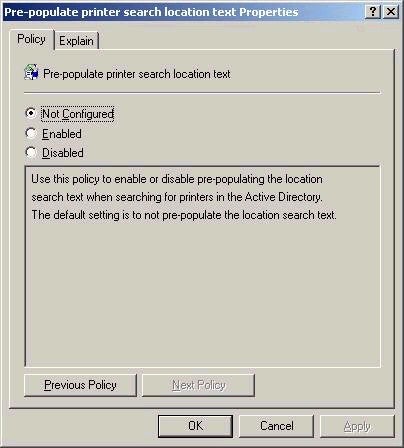
If you want
the exact step-by-step details of enabling location tracking in
policy, click
here.
In order for printer location tracking to work, all subnet objects
must have an associated location. This is set in the properties of
the subnet object in AD Sites and Services, as shown below.
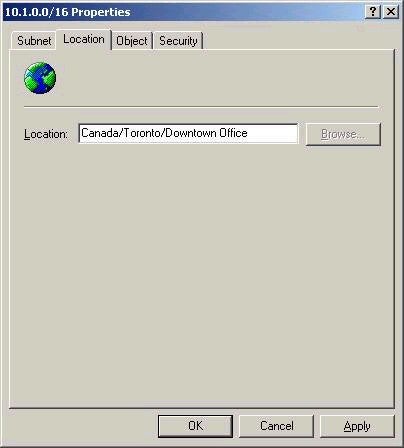
Location names
follow the convention Name/Name/Name etc, where any name can be
only 32 characters, and the maximum length for an entire location
is 260 characters. It would be a very good idea to map out a
location naming convention that makes sense and maps to the actual
physical network topology. For example, in a multinational
corporation with a presence in many countries might use the
format:
Company/USA/Boston/Building 1/Floor 3
Or
Company/Europe/Czech/Prague/HeadOffice
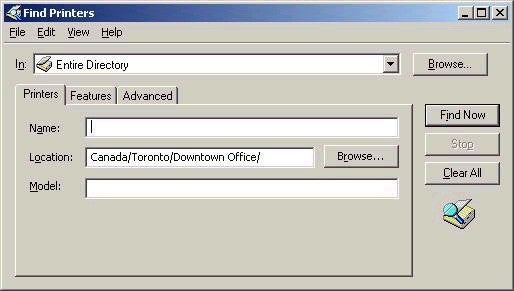
Just remember that location names correspond to IP subnets. Once
enabled in policy, the printer search box changes to automatically
include the location, as shown below:
Shared folders
can also be published in Active Directory in order to simplify the
ability to find information. Any folder accessible by a UNC path
can be published in Active Directory. To do this, in AD Users and
Computers right click and choose New Shared Folder. Users can now
browse for the folder in Active Directory, or a shortcut can be
created to it. The UNC location of the folder can also be changed,
by accessing the properties of the published folder, making it
easy to change physical locations without affecting how users see
resources. Just as importantly, you can also associate keywords
with the folder (these are set in the properties of the published
shared folder), which would allow users to search for it by those
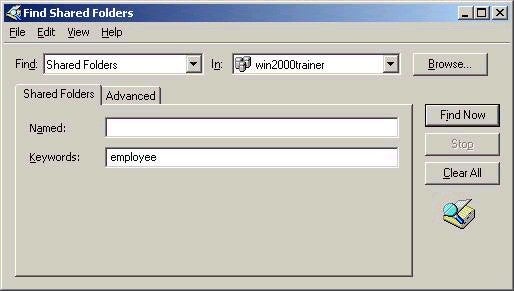
keywords. Searching by keyword is done by using the Find command
in either AD Users and Computers, or by browsing to the AD domain
in My Network Places, right clicking and choosing Find, as shown
below:
Note that the
published object, like all objects in Active Directory, has a
discretionary access control list (DACL) associated with it. As
such, the permissions granted to the user via the published folder
may differ from the NTFS or Share permissions set on the folder
itself, which may restrict a user’s ability to access it with
appropriate control. To view the permissions associated with the
folder, remember that you will need to have the View – Advanced
Features option selected in AD Users and Computers prior to
accessing the object’s properties – this will allow you to
view the DACL via the Security tab.
That does it for this week. In next week’s article I intend to
cover a couple of topics, both delegating administrative control
and implementing group policy. Thanks again to everyone who has
been supporting the series and sticking with their studies. As
always, feel free to contact me with your comments, questions, and
suggestions, I look forward to hearing from you. I also hope that
you’ll visit my website, where you’ll find my free practice
exams, article archive, and links to great study resources. I hope
you’ll also consider using my message board to ask your
technical questions – maybe you can help out by answering the
questions that others have as well! Until next week, good luck
with your studies.